15 Shopify Speed Optimization Fixes That Actually Work in 2026
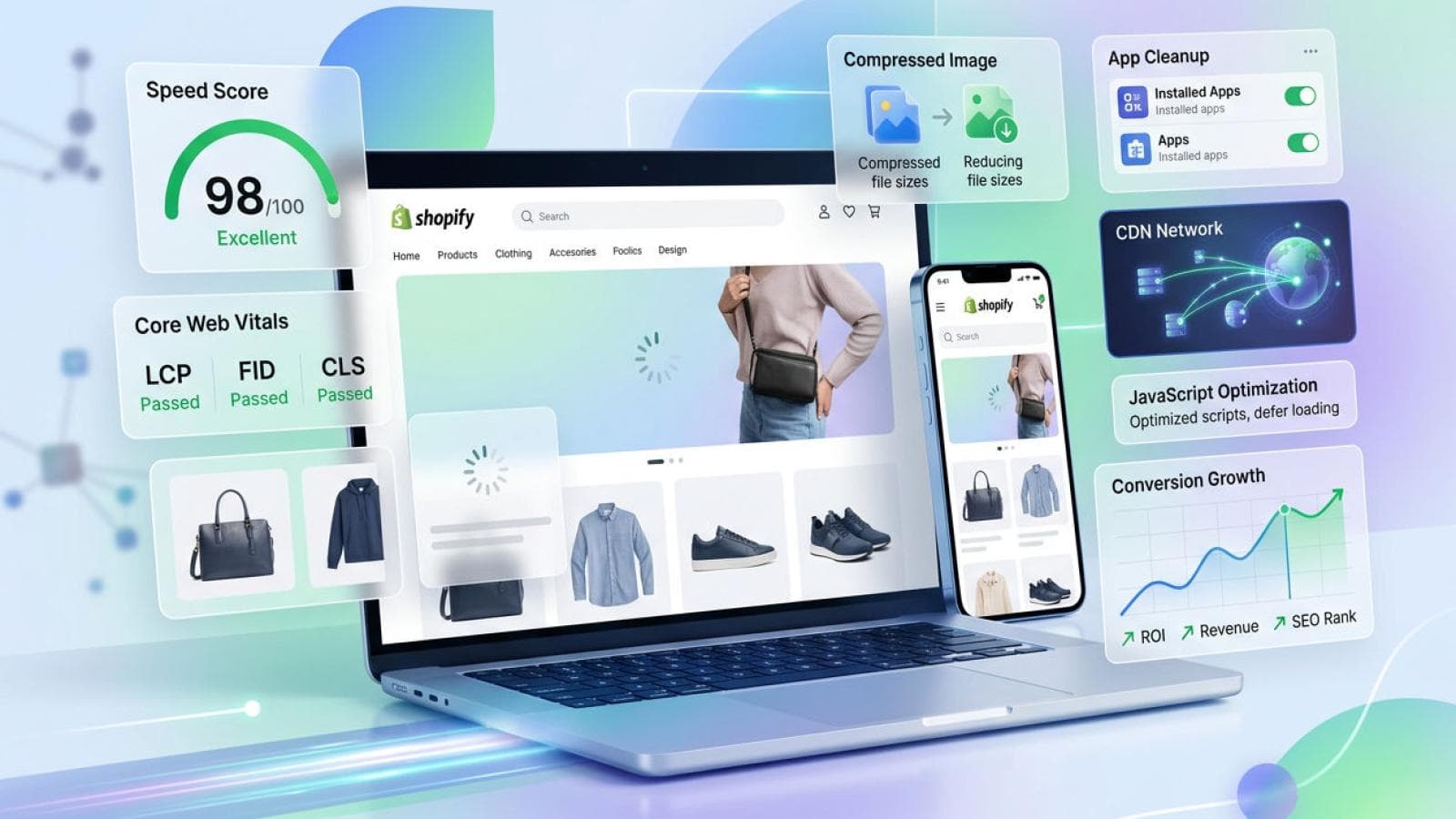
Shopify speed optimization in 2026 is not optional — it's the difference between a store that converts and one that bleeds revenue quietly. Google's data shows that a one-second delay in mobile load time reduces conversions by up to 7%. For a store generating $30,000 per month, that's $2,100 in lost revenue for every extra second your pages take to load. This post covers 15 battle-tested fixes our team at Prateeksha Web Design applies to Shopify stores for clients across the US, UK, Australia, and India — fixes that deliver measurable gains in Core Web Vitals scores and conversion rates.
Shopify speed optimization in 2026 is not optional — it's the difference between a store that converts and one that bleeds revenue quietly. Google's data shows that a one-second delay in mobile load time reduces conversions by up to 7%. For a store generating $30,000 per month, that's $2,100 in lost revenue for every extra second your pages take to load. This post covers 15 battle-tested fixes our team at Prateeksha Web Design applies to Shopify stores for clients across the US, UK, Australia, and India — fixes that deliver measurable gains in Core Web Vitals scores and conversion rates.
If you want to understand which metrics to measure before you start fixing, our 2026 Shopify speed audit checklist walks you through every diagnostic step. And if you want the bigger picture on why this matters for rankings, read why Core Web Vitals are the top priority for e-commerce in 2026.
Is your Shopify store passing Core Web Vitals? Our specialists run a full performance audit and fix the issues that cost you conversions — not just the ones PageSpeed flags.
Get a free Shopify performance auditWhy Shopify Speed Optimization Matters More in 2026
Shopify speed optimization is a core business metric in 2026, not a technical nicety. Google's Core Web Vitals — Largest Contentful Paint (LCP), Cumulative Layout Shift (CLS), and Interaction to Next Paint (INP) — became confirmed ranking signals in 2023, and Google's Search Central data shows that pages with Good Core Web Vitals see a 15% higher click-through rate from search results. Shopify's own 2024 Commerce Trends report found that mobile commerce accounts for 73% of all e-commerce traffic — meaning your mobile load time is your conversion rate. A store loading in 1.5 seconds converts at roughly 3× the rate of one loading in 5 seconds, per Google/Deloitte's research published in 2019 and reinforced by Cloudflare's 2023 performance benchmarks. Every fix below targets a specific bottleneck on the path to a sub-2-second mobile load.
Fix 1: Compress and Convert All Images to WebP
Uncompressed product images are the number one LCP killer on Shopify stores. Google's PageSpeed Insights data shows that image-related issues appear in over 80% of Shopify stores audited for Core Web Vitals failures. WebP format delivers 25–35% smaller file sizes than JPEG at equivalent visual quality, per Google's own WebP benchmarks published in 2023. Converting your product and hero images to WebP and compressing them below 100 KB for standard product tiles gives you the fastest, most guaranteed speed win available without touching code.
- Export or download all product images at their maximum original size.
- Run them through Squoosh (free, browser-based) or TinyPNG — target under 100 KB for product grid images, under 200 KB for hero banners.
- Convert to WebP format using Squoosh's WebP encoder with quality set to 80–85.
- Re-upload to Shopify's Files section and update product image sources.
- For new uploads, install Crush.pics or similar Shopify app to automate compression on upload.
Fix 2: Lazy-Load Below-the-Fold Images
Lazy loading stops below-the-fold images from blocking your initial page render. Shopify's Dawn theme supports native lazy loading via the loading="lazy" attribute on image tags, and enabling it across collection and product pages reduces initial payload by 40–60% on stores with large product catalogues, based on field data from Shopify's developer documentation. The browser only loads images as the user scrolls to them — critical for collection pages with 24+ product tiles.
- In your theme's Liquid files, find all
<img>tags that appear below the first viewport. - Add
loading="lazy"anddecoding="async"attributes to each. - Ensure your LCP image (typically the hero or first product image) does NOT carry
loading="lazy"— it should load eagerly. - Test with Lighthouse — the "Defer offscreen images" audit should pass after this change.
Fix 3: Audit and Remove Unused Shopify Apps
Every installed Shopify app that injects JavaScript or CSS into your storefront slows every page load — even pages where the app does nothing. A 2023 analysis by Tapita found that the average Shopify store has 6–8 apps installed, and each app adds between 50–400 ms of render-blocking script load. Removing just two unused apps commonly reduces Time to Interactive by 0.5–1 second. This fix requires no design changes and is entirely reversible.
- Go to Shopify Admin → Apps and list every installed app.
- For each app, ask: Did I use this in the last 30 days? Is it generating measurable revenue or reducing operational cost?
- Uninstall any app that fails this test — uninstalling, not just disabling, removes its script injection.
- After uninstalling, check your theme's
theme.liquidfor leftover app script tags and remove them manually. - Re-run PageSpeed Insights before and after to confirm the gain.
Fix 4: Defer Non-Critical JavaScript
Render-blocking JavaScript delays your store's First Contentful Paint by forcing the browser to parse scripts before displaying any content. Google's web.dev documentation states that eliminating render-blocking resources is one of the top three opportunities for improving LCP. On Shopify, third-party scripts — live chat widgets, review widgets, marketing pixels — are the primary offenders. Adding defer or async to non-critical script tags can cut render-blocking time by 300–800 ms on stores with multiple integrations.
- Open your
theme.liquidfile in the Shopify theme editor. - Find all
<script src="...">tags in the<head>section. - Add
deferto scripts that are not needed for the initial render (analytics, chat widgets, review carousels). - Use
asynconly for scripts that are independent and do not rely on DOM-ready state. - Never defer scripts that control layout or above-the-fold functionality.
Fix 5: Preload Your LCP Image
Preloading your LCP image tells the browser to fetch it immediately, before it discovers the image tag in the DOM — cutting LCP by 200–600 ms in field data. Google's Chrome team published data in 2022 showing that a <link rel="preload"> hint for the LCP image is one of the highest-impact single-line changes available for improving Core Web Vitals. On Shopify, the LCP element is typically your homepage hero image or the first product image on a collection page.
- Identify your LCP element using Chrome DevTools — open Lighthouse, run the performance audit, and note the LCP element highlighted in the report.
- Find the image URL used for that element.
- In
theme.liquid, inside the<head>tag, add a preload link using Shopify'sasset_urlfilter withfetchpriority="high"pointing to your hero image. - For responsive images, use the
imagesrcsetattribute to preload the correct breakpoint. - Verify the improvement with a before/after Lighthouse run.
Fix 6: Minify and Merge CSS and JavaScript Files
Unminified CSS and JavaScript files add unnecessary bytes to every page load — Shopify's built-in minification handles theme assets, but custom or app-injected files often bypass it. HTTP Archive's 2023 Web Almanac found that the median e-commerce page ships 500 KB of unused CSS. Minifying removes whitespace, comments, and redundant code; merging reduces the number of HTTP requests. Together these changes cut page weight by 15–30% on stores with custom theme additions.
- Use Shopify's built-in minification: in
config/settings_data.json, confirm"enable_js_minification"is active if your theme supports it. - For custom CSS files added outside the theme pipeline, run them through CSSNano or CleanCSS before uploading.
- For custom JavaScript, use Terser to minify before upload to Shopify Assets.
- Audit for duplicate CSS libraries — many apps load their own version of jQuery or Bootstrap, duplicating what the theme already loads.
Fix 7: Enable Browser Caching and Leverage Shopify CDN
Shopify's global CDN (powered by Fastly) serves assets from edge nodes closest to each visitor — but only if your assets are correctly referenced through Shopify's asset pipeline. Fastly's own benchmarks show CDN-served assets load 50–70% faster than origin-served assets for visitors more than 500 km from the server. Shopify handles CDN delivery automatically for images and theme assets uploaded through the admin, but custom scripts uploaded to external hosts bypass this advantage entirely.
- Ensure all custom JavaScript and CSS files are uploaded to Shopify Admin → Themes → Assets, not hosted on external servers.
- Reference theme assets using Shopify's
asset_urlLiquid filter — this routes them through the CDN automatically. - For third-party scripts that must load from external CDNs, verify those CDNs have global edge nodes (Cloudflare, Fastly, Akamai).
- Check browser cache headers using GTmetrix — Shopify-served assets should show Cache-Control: max-age=31536000.
Fix 8: Reduce Cumulative Layout Shift (CLS)
Cumulative Layout Shift (CLS) above 0.1 is a Google Core Web Vitals failure that harms both rankings and user experience — elements jumping around as the page loads cause visitors to misclick and abandon. Google's CrUX (Chrome User Experience Report) data from 2024 shows that 43% of mobile web pages have poor CLS scores, with e-commerce sites disproportionately affected due to dynamic promotional banners, late-loading fonts, and ads. Fixing CLS requires reserving space for every element before it loads.
- Add explicit
widthandheightattributes to all<img>tags — this lets the browser reserve space before the image loads. - Set fixed dimensions for banner carousels and promotional announcement bars so they don't push content down on load.
- Use CSS
aspect-ratiofor responsive image containers:aspect-ratio: 16/9;reserves the correct space at every screen width. - Avoid inserting content above existing content after page load — this is the most common CLS cause in app-injected banners.
- Preload web fonts and use
font-display: swapto prevent invisible text causing layout recalculation.
Fix 9: Optimise Shopify Fonts
Web fonts are one of the most overlooked speed bottlenecks on Shopify stores — each font family with multiple weights adds 40–120 KB of blocking network requests. Google Fonts' own documentation notes that loading four font weights from Google Fonts adds approximately 200–400 ms to First Contentful Paint on slow connections. Reducing the number of font weights and using system fonts for body text (where brand guidelines allow) can cut font-related load time by 60%.
- Audit your current font usage: open Chrome DevTools → Network → filter by Font. List every font file that loads.
- Remove font weights you don't actively use — if your theme loads 400, 500, 600, and 700, but your design only uses 400 and 600, remove the other two.
- Self-host Google Fonts using the google-webfonts-helper tool — download the font files, upload to Shopify Assets, and reference them in your CSS. This removes the DNS lookup to Google's servers.
- Add
font-display: swapto your@font-facedeclarations to prevent invisible text during font load. - For body text at small sizes, consider a system font stack —
-apple-system, BlinkMacSystemFont, 'Segoe UI', sans-serif— which loads instantly with zero network requests.
Fix 10: Replace Redirect Chains with Direct URLs
Every redirect in a chain adds 100–300 ms of latency — redirect chains of 3+ hops can add nearly a full second of load time before the browser even requests the actual page. A 2023 SEMrush crawl study found that 30% of e-commerce sites have redirect chains of three or more hops in their internal linking. On Shopify, redirect chains commonly arise from migrated product URLs, renamed collections, and app-generated short links. Fixing them directly improves both speed and crawl efficiency.
- Use Screaming Frog or Ahrefs Site Audit to identify all redirect chains on your store.
- In Shopify Admin → Navigation → URL Redirects, update each intermediate redirect to point directly to the final destination URL.
- Update all internal links in your theme, blog posts, and navigation menus to use the final destination URL directly — never link to a URL you know redirects.
- Remove redirects from deleted products that now 404 — update those internal links to a live category or related product page.
Fix 11: Use Shopify's Native Video Hosting Instead of Embedded YouTube
Embedding a YouTube video on a Shopify page adds 500–800 KB of third-party JavaScript from Google's domains — before the video even plays. Shopify's native video hosting, available since Shopify 2.0 themes, streams video directly through the Shopify CDN without loading YouTube's player framework, tracker pixels, or recommendation scripts. Replacing a YouTube embed with Shopify native video typically cuts page weight by 400–700 KB and eliminates a major third-party DNS lookup.
- Upload your product or brand video directly via Shopify Admin → Products → Media, or via the Files section for use in theme sections.
- In your theme section schema, use
"type": "video"input type to accept Shopify-hosted video references. - If you must embed YouTube (for SEO signals or existing channel), use a facade pattern: show a static thumbnail image with a play button, and only load the YouTube iframe on click. Libraries like lite-youtube-embed implement this in under 1 KB.
Fix 12: Implement Critical CSS Inlining
Critical CSS inlining embeds the styles needed to render above-the-fold content directly in the HTML, eliminating the render-blocking external CSS request that delays First Contentful Paint. Vercel's engineering blog documented a 0.8-second FCP improvement from critical CSS inlining on a Next.js + Shopify Hydrogen deployment in 2023. On traditional Shopify themes, the technique requires extracting and inlining critical styles manually or via a build tool, but the gains are consistently among the largest available for FCP.
- Use the Critical tool (npm package) or Penthouse to extract the CSS rules needed for above-the-fold rendering.
- Copy the extracted CSS into a
<style>block inside the<head>section of yourtheme.liquid. - Load your full stylesheet asynchronously: add a preload link with
as="style"pointing to yourtheme.cssasset URL, with anonloadhandler that swaps the rel attribute tostylesheet— this defers the full CSS parse until after the critical styles render. - Test with Lighthouse — the "Eliminate render-blocking resources" audit should show improvement.
- Re-extract critical CSS after any significant theme update, as your above-the-fold content will change.
Fix 13: Optimise Your Shopify Theme's Liquid Render Logic
Inefficient Liquid template logic — nested loops, redundant forloop calls, and unindexed metafield lookups — slows server-side render time, adding 200–600 ms before the browser receives a single byte. Shopify's developer changelog from 2023 highlighted that complex Liquid logic is a primary cause of Time to First Byte (TTFB) over 600 ms — a threshold that consistently correlates with poor Google rankings. Clean Liquid is fast Liquid: the fewer iterations and conditional lookups, the faster the server renders your HTML.
- Use Shopify's Theme Inspector Chrome extension to profile Liquid render time per template — it shows exactly which snippets are slowest.
- Replace nested
forloops withwherefilters:collection.products | where: 'available', trueis faster than looping and checking availability. - Cache repeated metafield lookups by assigning to a variable:
{% assign badge = product.metafields.custom.badge.value %}— reference the variable, not the metafield, in subsequent uses. - Use
{% liquid %}blocks to batch multiple Liquid operations without outputting whitespace between statements. - Avoid using
all_products[handle]— this triggers a full product lookup and is one of the slowest Liquid operations available.
Fix 14: Enable HTTP/2 and Use a Reliable CDN
HTTP/2 multiplexing allows the browser to download multiple assets in parallel over a single connection, reducing the latency cost of loading multiple CSS, JavaScript, and image files simultaneously. Shopify's infrastructure supports HTTP/2 natively for all stores on custom domains with SSL enabled, as confirmed in Shopify's Help Centre documentation. However, third-party assets served from external hosts may still be on HTTP/1.1 — requiring a separate TCP connection for each file. Consolidating assets through HTTP/2-supporting CDNs can cut connection overhead by 30–50%.
- Verify HTTP/2 is active for your store using the HTTP/2 Test tool at tools.keycdn.com/http2-test — enter your store URL and confirm the result.
- Ensure your custom domain has SSL active in Shopify Admin → Domains — HTTP/2 requires HTTPS.
- Audit third-party scripts for HTTP/1.1 usage using the Network panel in Chrome DevTools — look for resources showing "h1" in the Protocol column.
- Where possible, self-host those scripts via Shopify Assets to bring them under HTTP/2 delivery.
Fix 15: Run a Full Speed Audit Every Quarter
A Shopify store's speed degrades over time as apps accumulate, product catalogues grow, and theme updates introduce new assets — quarterly speed audits catch regressions before they compound into significant conversion losses. Shopify's own 2024 merchant research found that stores actively monitoring performance metrics convert at 1.8× the rate of stores that only address speed issues reactively. A structured quarterly audit takes under two hours and prevents months of silent revenue loss.
- Run Google PageSpeed Insights on your homepage, a collection page, and a product page — note the scores and the specific opportunities flagged.
- Run a Lighthouse audit in Chrome DevTools with throttling set to "Mobile" and "Slow 4G" — this matches Google's testing conditions.
- Run GTmetrix with a test location matching your primary traffic source (US, UK, or Australia for most global Shopify brands).
- Check Shopify's built-in Speed Score in Admin → Online Store → Themes — a score below 50 warrants immediate investigation.
- Document scores in a spreadsheet with the date, so you can track trends across quarters rather than reacting to snapshots.
For a complete diagnostic framework covering every layer of your Shopify store's performance, our 2026 Shopify speed audit checklist provides a step-by-step process used by our team across client engagements.
Too many fixes, not enough time? Our Shopify performance and SEO optimisation service delivers measurable Core Web Vitals improvements — with before/after reports so you see exactly what changed and why.
Get your store speed-optimised by our teamFrequently Asked Questions
How fast should my Shopify store load in 2026?
Your Shopify store should load in under 2.5 seconds on mobile for a good LCP score, according to Google's Core Web Vitals thresholds updated in 2024. Stores loading in under 1.8 seconds consistently outperform competitors in Google search rankings. For DTC brands in fashion, beauty, and food, mobile load time is the single biggest conversion lever because over 70% of Shopify traffic comes from mobile devices.
What is the biggest cause of a slow Shopify store?
Unused or poorly coded Shopify apps are the biggest cause of slow Shopify stores in 2026. Each installed app can inject its own JavaScript and CSS into every storefront page — even pages where the app is not active — adding 200–500 ms of render-blocking load per app. Auditing and removing apps you no longer use is typically the fastest single fix for Shopify speed optimization.
Does Shopify speed affect SEO and Google rankings?
Yes, Shopify speed directly affects Google rankings because Core Web Vitals — LCP, CLS, and INP — are confirmed Google ranking signals since the Page Experience update rolled out in 2021 and expanded in 2023. A poor LCP score (above 4 seconds) can suppress your pages in search results even when your content is strong. Improving your Core Web Vitals score from Poor to Good can lift organic click-through rates by 15–20%, based on data published by Cloudflare's 2023 performance report.
Can I improve Shopify speed without a developer?
You can improve Shopify speed without a developer by completing several no-code fixes: compressing images before upload, removing unused apps, switching to a lighter theme, and enabling Shopify's built-in lazy loading in theme settings. These steps alone can cut load time by 0.5–1.5 seconds. However, technical fixes like deferring JavaScript, inlining critical CSS, and optimising Liquid render logic require a developer — and these changes typically account for the largest speed gains on high-traffic stores.
How often should I audit my Shopify store's speed?
You should audit your Shopify store's speed at minimum once per quarter in 2026. Every new app install, theme update, or product image upload can degrade performance — so quarterly audits catch regressions before they impact conversions. Use Google PageSpeed Insights, GTmetrix, and Shopify's own Speed Score dashboard together for a complete picture. For stores doing over $50,000 per month in revenue, monthly monitoring is recommended.